
ENS Remote Connect Service
ENS Remote Connect Service Instructions
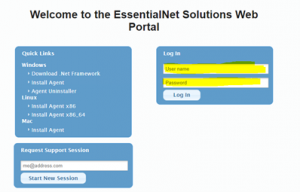
- Go to https://ensusa.hostedrmm.com via Google Chrome, type in your credentials that were provided to you previously and click Log In as shown in the image below.
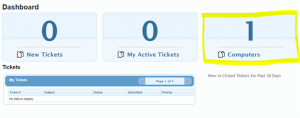
- Next, click Computers
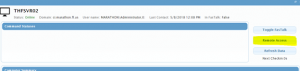
- Then click the "Computer Name" you wish to connect to.

- Next, click Remote Access
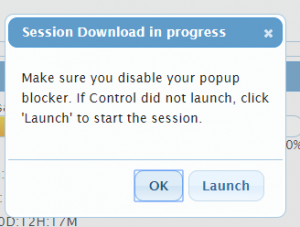
- Make sure that you have disabled your popup blocker and click OK, IF Control did not Launch, click Launch
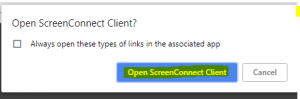
- The first time you connect, you may need to download and install the "ScreenConnect Client" tool, you will be prompted to do so if required.
- Click Open ScreenConnect Client
- Log onto the Computer with your workstation "User Credentials" or observe the session already in progress.
You must be logged in to post a comment.